
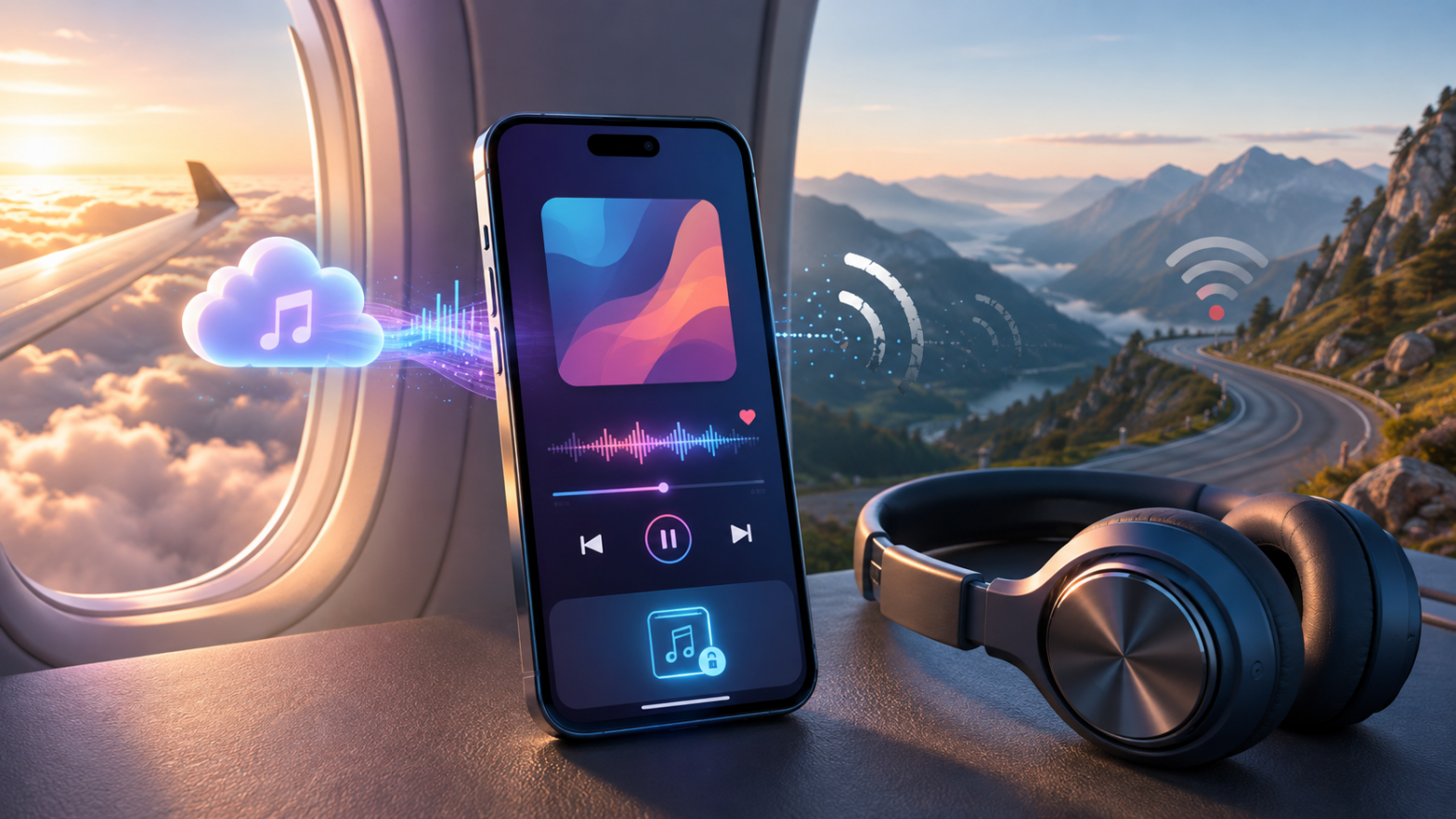
Demus by Šimon Zvára is a refreshingly simple music-streaming app for iPhone and iPad. It lets you find songs and music videos, bookmark favorites, organize them into playlists, browse music by album or artist, view lyrics, and play audio through AirPlay, a car stereo, or other compatible devices. Better still, you can begin using it without creating an account.
That lightweight approach makes Demus attractive to anyone who wants to assemble a personal music library without signing up for another full-scale streaming service. It also raises an obvious question: Can you download music in Demus and listen without an internet connection?
The short answer is no. At the time of writing, Demus by Šimon Zvára does not provide an official music-download feature or a true Offline Mode. Songs added to the Demus library are bookmarked for streaming; they are not necessarily saved as playable audio files on your device.
That distinction matters if you are preparing for a flight, road trip, underground commute, or journey through an area with unreliable mobile coverage. This guide explains what Demus can do, what happens when your connection disappears, and how to prepare a reliable offline-music backup without confusing Demus with unrelated apps that use the same name.
Make Sure You Have the Correct Demus App
There are several music applications called Demus, and they do not all offer the same features.
This guide covers Demus: Easy Music Streaming, the iPhone and iPad app developed by Šimon Zvára. The official Demus website describes an app for bookmarking and organizing songs, music videos, playlists, albums, and artists. Its current Apple App Store listing likewise focuses on streaming, playlists, lyrics, library synchronization, AirPlay, and car or stereo controls.
Neither official description currently advertises music downloads or offline playback.
An unrelated Android application also uses the Demus name and promotes offline MP3 downloads. Instructions written for that app do not apply to Šimon Zvára’s version. Before following any Demus tutorial, check the developer name shown on the store page. On an iPhone or iPad, the correct app for this article should list Šimon Zvára or Simon Zvara as the developer.
Can You Download Songs in Demus?
Demus lets you add songs to your personal library, but adding a song is not the same as downloading it.
When you bookmark music in Demus, the app remembers the item and adds it to your organized library. You can return to the song without searching for it again, place it in playlists, and browse it by artist or album. The audio itself is still streamed from an online source when you press Play.
A genuine download feature works differently. It transfers an authorized copy of the audio to protected storage on the device. The music service can then play that copy when Wi-Fi and mobile data are unavailable.
Demus does not currently display a documented download button for songs, albums, or playlists. It also does not offer a downloaded-music section or an Offline Mode switch that restricts playback to locally stored tracks.
You may find that a recently played song occasionally starts when the connection is weak or temporarily unavailable. That can happen because applications and web services keep short-lived cached data. However, a cache is not a dependable offline library. iOS can clear temporary files, and the cached material may be incomplete or expire without warning.
For travel planning, the safest assumption is simple: if Demus needs a stream, Demus needs an internet connection.
Why Demus Does Not Have a Conventional Download Button
Offline downloads are more complicated than placing an arrow beside a song. Music services need permission to distribute downloadable copies, along with systems for licensing, digital-rights management, storage, account verification, and regional availability.
Demus takes a different approach. It acts primarily as a convenient music-library organizer and streaming interface. It allows users to begin listening quickly and does not require the traditional account setup associated with many subscription services.
That simplicity is part of its appeal. You can install the app, search for music, bookmark what you like, and begin building playlists within minutes. The tradeoff is that Demus is not a replacement for the offline-download systems built into services such as Apple Music, Spotify Premium, or YouTube Music Premium.
This does not make Demus a poor music player. It simply means that its strengths lie in convenient discovery, streaming, organization, and playback rather than permanent or subscription-controlled offline access.
Step 1: Build Your Travel Playlist in Demus
Although Demus cannot download the playlist, it remains useful for planning what you want to hear.
Open Demus and search for a song, artist, album, or music video. Play a few seconds to confirm that you have found the correct recording. Popular songs frequently appear as studio versions, live performances, remixes, covers, and shortened edits.
Add the track to your Demus library and place it in a playlist. Continue until you have assembled enough music for the journey.
Make the playlist longer than the expected travel time. A two-hour collection may sound adequate before departure, but it can feel remarkably repetitive during a full day on the road. For a long flight, aim for several playlists with different moods rather than one endless queue.
For example, you might create separate collections for energetic music, relaxed listening, nighttime travel, children’s songs, or quieter tracks intended for noise-canceling headphones.
Your Demus playlist can now serve as a convenient planning list. The next step is to recreate the essential parts in an app that officially supports offline downloads.
Step 2: Choose an Offline-Listening App
On an iPhone or iPad, the most convenient alternative is Apple Music because it is integrated into iOS. A subscription is required to download songs from the Apple Music catalog.
Apple’s official instructions explain that you must first add a song, album, or playlist to your library. You can then tap the download button to save it for offline playback. The downloaded music remains inside the Apple Music app rather than appearing as an unrestricted audio file. See Apple’s offline-download instructions for the current procedure.
Spotify Premium is another option. Premium members can download albums, playlists, and podcasts, although individual songs must normally be added to a playlist before downloading. Spotify also requires the app to reconnect periodically to maintain access to downloaded music. Its current limits and instructions are available on the Spotify offline-listening support page.
YouTube Music Premium supports offline downloads of eligible songs, albums, playlists, videos, and podcasts. Its Smart Downloads feature can automatically keep a changing selection of music on the device. Google explains the available options in its YouTube Music offline guide.
If you already own DRM-free audio files, you can also transfer them to your iPhone and play them through an appropriate local music player. Use only files you obtained legally or have permission to copy.
Step 3: Recreate the Important Part of Your Demus Playlist
Keep Demus open as your reference and search for the same tracks in the offline-capable service you selected.
You do not necessarily need to duplicate every song. Begin with the tracks you most want available when the internet disappears. If space permits, add the remainder afterward.
Pay attention to the exact recording. Album artwork and song titles can look almost identical even when one result is a remaster, live version, clean edit, or remix.
Once the music has been added to the new service’s library, place it in a dedicated travel playlist. Giving it a descriptive name such as “Flight,” “Road Trip,” or “Offline Travel” will make it easier to find when you are tired, boarding, or dealing with limited time before departure.
This manual duplication is not as elegant as tapping a download button inside Demus, but it is far better than arriving in Airplane Mode with a playlist that cannot start.
Step 4: Download the Music Over Wi-Fi
Connect your iPhone or iPad to a reliable Wi-Fi network before starting. Large playlists can consume considerable data, particularly when high-quality audio is selected.
In Apple Music, open the album or playlist and tap the download arrow. In Spotify, open the playlist or album and enable its Download control. In YouTube Music, open the item’s menu and select Download.
Leave the app open long enough to confirm that downloading has started. You can usually continue using the device while the queue progresses, but iOS may slow or suspend background work under certain conditions.
Keep the device connected to power if you are downloading a large library. Disable Low Power Mode temporarily if progress repeatedly stalls, and make sure the screen has not been left on a page waiting for a confirmation.
Do not mistake “added to library” for “downloaded.” Look for the service’s completed-download symbol beside the playlist or individual tracks.
Step 5: Check Your Available Storage
Before downloading several albums, open Settings, select General, and then tap iPhone Storage or iPad Storage.
The space required depends on the number and length of the songs as well as the selected audio quality. Higher-quality and lossless formats can consume dramatically more storage than standard compressed audio.
For a road trip, moderate-quality downloads are often sufficient. Tire noise, wind, conversation, and the vehicle’s audio system may hide the subtle differences that are obvious through premium headphones in a quiet room.
Air travelers using good noise-canceling headphones may prefer higher-quality downloads, but there is no benefit in filling the phone so completely that iOS has no room for photos, maps, messages, or app updates.
Remember to reserve storage for other travel essentials. Offline maps, movies, audiobooks, and videos usually consume much more space than an ordinary compressed-music playlist.
Step 6: Test Playback in Airplane Mode
Never wait until boarding to discover whether a download completed.
After the queue has finished, enable Airplane Mode on your iPhone or iPad. Confirm that Wi-Fi is switched off as well. iOS can remember that you previously re-enabled Wi-Fi while using Airplane Mode, so checking the control manually is worthwhile.
Open your offline-capable music app and play tracks from the beginning, middle, and end of the playlist. Skip between songs, lock the screen, and test the playback controls on your headphones.
If the app attempts to connect, displays an unavailable symbol, or skips certain songs, those tracks may not have downloaded successfully. Reconnect to Wi-Fi, remove the affected download, and try again.
Open Demus during the same test if you want to see the difference. Your bookmarked library may remain visible, but tracks that require an online stream should not be considered reliable offline content.
Using Demus During a Road Trip
Demus remains a capable choice when your trip has consistent mobile coverage. Its organized library, playlists, AirPlay support, and compatibility with car or stereo controls make it convenient for normal streaming.
Before driving, select the playlist and start playback while the vehicle is stationary. Avoid searching for songs or reorganizing the queue while on the road. Use steering-wheel controls, Siri, or a passenger whenever possible.
Keep a downloaded playlist in another app as a fallback. If Demus stops when the route enters a dead zone, switch to the offline collection rather than repeatedly attempting to reload the stream.
Be mindful of mobile-data consumption. A long day of continuous streaming can use a noticeable amount of data, and roaming charges can turn a harmless playlist into an expensive souvenir.
Using Demus on a Flight
Demus is not a dependable primary music source during a flight because Airplane Mode disables the mobile connection. In-flight Wi-Fi may restore streaming, but it can be slow, restricted, or expensive.
Download your essential music through an authorized offline service before reaching the airport. Test it at home and again while waiting at the gate.
Bluetooth can usually be switched back on after activating Airplane Mode, allowing wireless headphones to work. Airline policies can vary, so follow the cabin crew’s instructions. Carrying a charging cable, power bank, and wired-headphone adapter is also sensible for a long journey.
Demus can return to its normal role after landing and reconnecting. Until then, your downloaded backup should handle the soundtrack.
Beware of Fake Demus Download Instructions
Search results may contain guides claiming that Demus offers one-tap MP3 downloads, high-fidelity offline storage, Smart Downloads, automatic offline synchronization, or a dedicated downloaded-music dashboard.
Those instructions may describe another application named Demus, speculate about unannounced features, or simply contain inaccurate information. They do not match the documented feature set of Demus: Easy Music Streaming by Šimon Zvára.
Avoid installing unofficial modified versions that promise to unlock downloads. Sideloaded packages can contain altered code, aggressive advertising, credential theft, or other unwanted components. On an iPhone or iPad, obtain Demus from Apple’s App Store and confirm the developer identity.
You should also avoid websites offering unauthorized copies of copyrighted music. Aside from the legal concerns, music-download pages are notorious for deceptive buttons, notification traps, malicious profiles, and files that are not what they claim to be.
Will Demus Add Offline Listening in the Future?
Offline playback would be a useful addition, particularly for commuters and travelers, but users should not assume it is coming until the developer announces it.
The App Store listing is the best place to check the current feature description and version history. You can also monitor the official Demus website or contact the developer through the support details provided there.
If a future version adds downloads, expect the feature to appear clearly in the release notes, app description, player interface, or playlist menus. Until then, a bookmark icon should be treated as a library-management control—not as confirmation that the audio is stored locally.
You cannot currently download music for offline listening directly in Demus by Šimon Zvára. The app is designed primarily for discovering, bookmarking, organizing, and streaming music rather than storing playable offline copies.
For normal connected listening, Demus remains appealing because it is quick to start, requires no account, supports playlists and lyrics, and works with AirPlay and car audio. For flights, remote road trips, tunnels, and international travel, however, you should prepare a separate downloaded library using Apple Music, Spotify Premium, YouTube Music Premium, or legally owned local audio files.
Build your playlist in Demus, recreate the essential tracks in an offline-capable service, download everything over Wi-Fi, and test it in Airplane Mode before leaving. It is one extra preparation step, but it beats spending a ten-hour flight listening to the gentle hum of the ventilation system.