
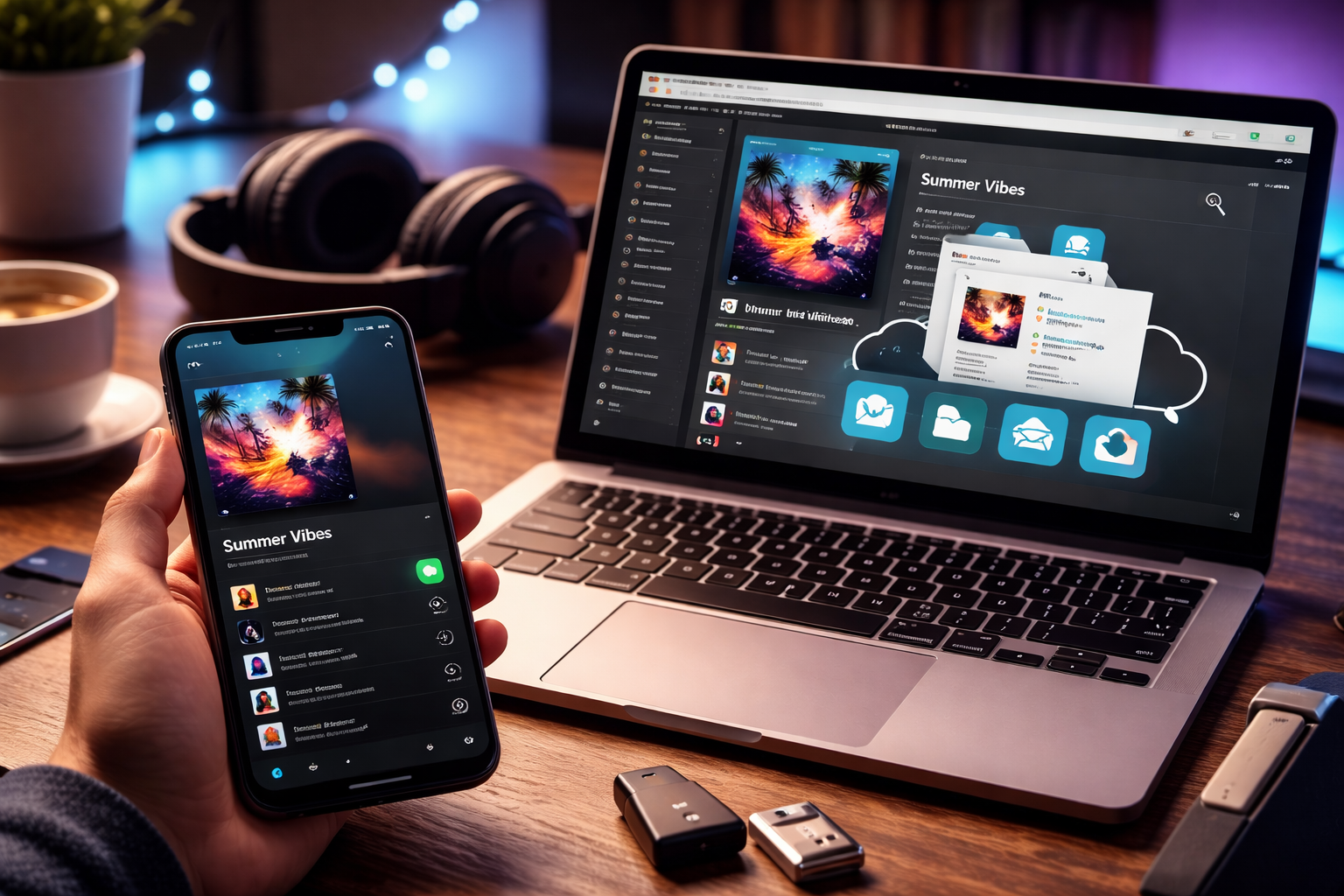
Whether you are curating a late-night synthwave session, a high-energy gym mix, or a meticulously organized classical collection, sharing music is part of the experience. If you are using Demus as your go-to music player, you already appreciate its clean interface and streamlined playlist management. But how do you share your Demus playlists with friends quickly and effectively?
In this comprehensive guide, I will walk you through how to share your Demus playlists, explore the different sharing methods available, troubleshoot common issues, and offer pro tips to make your music recommendations stand out.
Why Share Your Demus Playlists?
Before we get technical, let’s address the obvious question: why share playlists at all?
Because music is social.
Playlists let you:
- Curate moods and moments
- Recommend new artists
- Share event-specific soundtracks
- Collaborate on group listening experiences
- Showcase your personal taste
In short, sharing your Demus playlists turns passive listening into a connected experience.
Understanding How Demus Handles Playlists
Demus is designed around simplicity. Playlists in Demus typically consist of:
- Locally stored tracks
- Imported audio files
- Organized song collections
- Custom playlist names and sorting
Unlike cloud-native streaming platforms, some Demus playlists may rely on local media files. That distinction matters when it comes to sharing.
There are generally two main ways to share Demus playlists:
- Sharing the playlist structure (song list only)
- Sharing the actual audio files alongside the playlist
Let’s break down both methods.
Method 1: Share a Playlist as a Song List
If your goal is to share the list of songs, not the files themselves,, this is the simplest method.
Step 1: Open Demus
Launch Demus and navigate to your playlist library.
Step 2: Select the Playlist
Click or tap on the playlist you want to share.
Step 3: Access the Share Option
Depending on your version of Demus:
- Look for a Share icon (typically an arrow or three-dot menu).
- Tap Export Playlist or Share Playlist.
If the app supports direct sharing, you may see options such as:
- Copy link
- Share via email
- Share via messaging apps
- Export as file (e.g., M3U)
Exporting as an M3U File
One of the most common playlist formats is M3U.
An M3U file:
- Contains references to audio file locations
- Preserves track order
- Is widely supported by music players
To export:
- Choose Export Playlist.
- Select M3U format.
- Save the file to your device.
- Share it via:
- Cloud storage (Google Drive, Dropbox)
- Messaging apps
Your friend can import the M3U file into their own music player—provided they have access to the same songs.
Important: Local File Limitations
Here’s where things get tricky.
If your playlist contains local files stored only on your device, sharing the M3U file alone won’t transfer the music itself. The file simply tells the music player where the songs are located.
If your friend doesn’t have the exact same audio files in the same folder structure, the playlist won’t work properly.
That brings us to Method 2.
Method 2: Share Playlist + Audio Files
If you want your friend to experience your playlist exactly as intended, you’ll need to share both:
- The playlist file (M3U)
- The associated audio files
Step 1: Locate Your Music Files
Find the folder where your playlist tracks are stored. Ideally, keep them in a dedicated directory for easier sharing.
Step 2: Create a Folder
Create a new folder such as:
Chillwave_Playlist_Share
Inside, include:
- All audio files
- The exported M3U file
Step 3: Compress the Folder
Right-click the folder and choose:
- Compress
- Send to ZIP folder
- Or your system’s equivalent option
This creates a single, shareable archive file.
Step 4: Upload to Cloud Storage
Upload the ZIP file to:
- Google Drive
- Dropbox
- OneDrive
- iCloud
Generate a shareable link and send it to your friend.
How Your Friend Imports the Playlist
Once your friend downloads and extracts the folder:
- Open Demus.
- Choose Import Playlist.
- Select the M3U file.
- Ensure the audio files remain in the same folder structure.
If everything matches, the playlist should load correctly with intact track order.
Alternative: Share a Screenshot or Song List
If your goal is purely recommendation-based, say you want to share your “Top 25 Indie Tracks” playlist, you can simply:
- Copy the song list into a text document.
- Share a screenshot.
- Post it on social media.
- Export as a PDF.
This method works best when the playlist acts as inspiration rather than a fully transferable listening experience.
Collaborative Playlists: Is It Possible in Demus?
Depending on the version of Demus you’re using, collaborative features may be limited compared to streaming platforms like Spotify.
However, you can simulate collaboration by:
- Sharing a playlist file
- Asking friends to add tracks
- Re-exporting and re-sharing updated versions
It’s not real-time cloud collaboration—but it gets the job done.
Best Practices for Sharing Demus Playlists
To ensure smooth sharing, follow these PCMag-approved tips.
1. Organize Your Files First
Before exporting:
- Remove duplicate tracks.
- Fix incorrect metadata.
- Ensure consistent file naming.
Clean playlists are easier to share and more professional-looking.
2. Standardize Your Folder Structure
Keep playlists self-contained:
Playlist Name/
   Song1.mp3
   Song2.mp3
   Playlist.m3u
Avoid referencing files scattered across multiple drives.
3. Check File Compatibility
Make sure your audio files are in widely supported formats:
- MP3
- AAC
- WAV
- FLAC
Exotic or proprietary formats may not work on your friend’s device.
4. Test Before Sending
This is crucial.
Before sharing:
- Move your playlist folder temporarily.
- Import it again from scratch.
- Confirm all tracks load correctly.
If it works for you, it’ll likely work for them.
Sharing Across Devices: Desktop to Mobile
If you’re sharing from desktop and your friend is using Demus on mobile:
- Confirm the mobile version supports playlist imports.
- Ensure file paths aren’t desktop-specific.
- Use cloud storage for easier cross-platform access.
Mobile operating systems sometimes restrict folder access, so keep everything in one easy-to-locate directory.
Troubleshooting Common Playlist Sharing Issues
Let’s tackle the most frequent problems.
Problem: Songs Won’t Play After Import
Cause: File paths don’t match.
Fix:
- Ensure the M3U file and songs are in the same folder.
- Re-export with relative paths enabled (if supported).
Problem: Missing Metadata
Cause: Inconsistent ID3 tags.
Fix:
- Use a metadata editor before exporting.
- Standardize artist, album, and track names.
Problem: File Too Large to Share
Cause: High-quality FLAC files increase archive size.
Fix:
- Compress files.
- Use a file-sharing service that supports large uploads.
- Consider sharing only the playlist list if file transfer isn’t essential.
Legal and Ethical Considerations
A quick reality check.
If your playlist includes copyrighted material:
- Sharing the audio files may violate copyright laws in some regions.
- Always ensure you have the right to distribute the files.
Sharing a playlist list is typically fine. Sharing commercial music files is not always legal unless explicitly permitted.
Creative Ways to Share Your Demus Playlists
Want to elevate your playlist sharing game?
Here are a few creative approaches:
Create Cover Art
Design custom playlist artwork for a professional touch.
Add a Playlist Description
Explain:
- The mood
- The inspiration
- When to listen
Share on Social Media
Post your curated list with a compelling caption.
Turn It Into a Blog Post
Write about your track selection process and embed the playlist file link.
Why Playlist Sharing Still Matters in 2026
Even in a streaming-dominated world, local music libraries remain relevant:
- Higher audio quality control
- Offline reliability
- No algorithm interference
- Complete ownership of your collection
Demus users often value control and customization. Sharing playlists extends that philosophy into social territory, without sacrificing independence.
Sharing Made Simple
Learning how to share your Demus playlists with friends isn’t complicated, but it does require understanding how local files work.
Here’s the quick summary:
- Export your playlist (preferably as M3U).
- Share song lists for recommendations.
- Share audio files if you want the full experience.
- Use cloud storage for convenience.
- Test before sending.
In the end, sharing playlists is about connection. Whether it’s a carefully curated jazz collection or a hard-hitting gaming soundtrack, your Demus playlists deserve an audience.
And with the right approach, sharing them is just as seamless as creating them.
Now cue up your favorite mix and pass it along.